


Quick Overview
- Stable internet on both devices matters more than being on the same Wi-Fi
- Chrome Remote Desktop is free and works across almost every platform
- Microsoft's Remote Desktop uses port 3389 and works best on a home network
- A sleeping PC or mismatched accounts cause most connection failures
- Strong PINs, two-factor authentication, and avoiding public Wi-Fi keep sessions secure
What You Need for Remote Access from a Tablet

Before you try to remote access a PC from a tablet, a few basics need to be in place. You'll need a stable internet connection on both devices: they don't even have to share a Wi-Fi network, since most tools route through your account rather than the local network. You'll also need the PC switched on and awake, plus a Google, Microsoft, or app-specific account depending on the tool.
The first time I tried this, I assumed my tablet and laptop had to share a router and spent ten minutes troubleshooting before realising that wasn't the issue. Setting it up properly took under five minutes.
Choose the Right Remote Desktop App
Once you decide to remote access a PC from a tablet, picking the right remote desktop app matters more than people expect. Chrome Remote Desktop is free, lightweight, and works across Windows, Mac, Linux, Android, and iOS, making it a great everyday pick.
Microsoft's Remote Desktop app is built into Windows and uses the standard RDP protocol over port 3389, so it's a natural choice if you're already in the Microsoft ecosystem.
TeamViewer and AnyDesk add file transfer and multi-monitor support, while Splashtop and AnyViewer suit unattended access even across completely different networks.
How to Set Up Remote Access on Your PC
Setting up your PC is the one-time part of the process. For Microsoft's built-in option, go to Settings, then System, then Remote Desktop, and flip the toggle on; also note your PC's name here. Windows recommends keeping Network Level Authentication on, since it adds a login check before anyone can reach your desktop.
For Chrome Remote Desktop, install the Remote Desktop extension from the Chrome Web Store, name your computer, and set a PIN of at least six digits. Once you've allowed the app to make changes, your PC is ready to accept a connection.
Connect Your Tablet to Your PC Remotely
To connect tablet to PC remotely, install the matching app on your tablet and sign in with the same account you used on your computer. For Chrome Remote Desktop, that's the same Google account on both devices. For Microsoft's app, add a new connection using your PC's name (or IP address, with:3389 appended for a custom port) and your Windows login credentials.
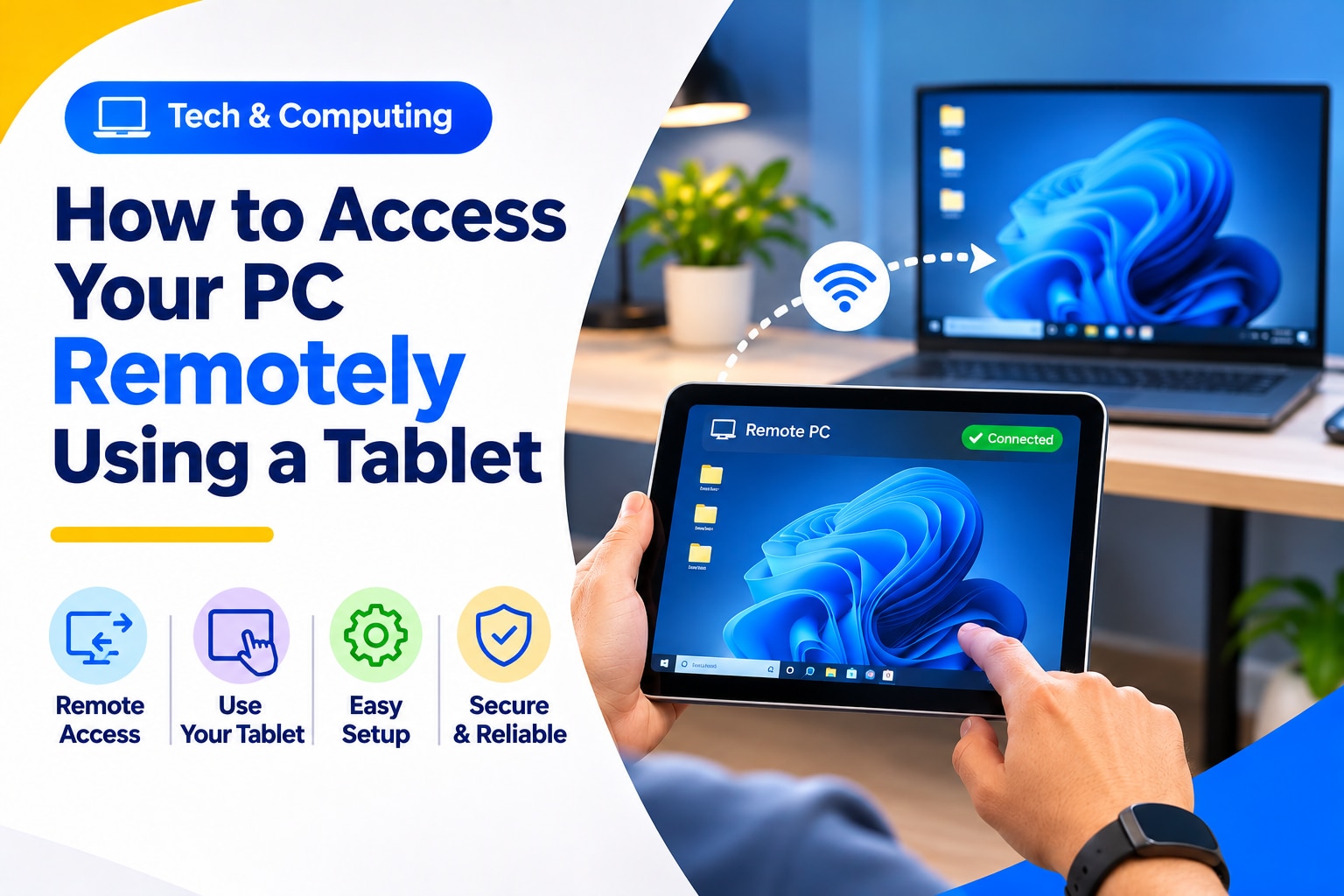
Once connected, your tablet screen shows your desktop exactly as it looks on the PC: a genuinely satisfying feeling the first time it works.
How to Control Your PC from a Tablet
Wondering how to control your PC from the tablet once you're connected? Most apps translate touch gestures into mouse and keyboard actions, so you can control your computer from a tablet using taps and swipes instead of a physical mouse.
Using Chrome Remote Desktop on a Tablet
Tapping the screen acts as a left click, and a two-finger tap brings up a right-click menu. An on-screen keyboard icon handles typing, and an options panel lets you adjust display quality on a slow connection.
Using Other Remote Desktop Apps
Apps like the Microsoft Remote Desktop client work similarly, with swipe gestures moving the cursor and a keyboard icon for text input. Some also include a magnifying glass icon to zoom in on smaller UI elements, which helps on a tablet screen.
Common Problems When Connecting a Tablet to a PC Remotely

Even a solid setup for a remote access PC from a tablet hits the occasional snag. The most common hiccup is the PC going to sleep, which cuts the connection instantly: adjusting power settings so the PC stays awake fixes this. Signing into different accounts on each device is another frequent issue, and it simply won't connect. Router or firewall settings blocking port 3389 can also stop Microsoft Remote Desktop from working; in that case, switching to Chrome Remote Desktop or an alternative like AnyDesk usually solves it without any network changes.
Tips for a Smooth and Secure Remote Desktop Experience
Use a strong PIN or password, and enable two-factor authentication when available. Avoid connecting over public Wi-Fi without a VPN, since remote desktop sessions carry your screen and keystrokes across the network. Closing unnecessary apps on your PC before connecting also helps, since a leaner desktop responds faster remotely.
Conclusion: Remote Access PC from Tablet
Once it's set up, using a remote access PC from a tablet becomes second nature: it's genuinely useful for grabbing a forgotten file, running a program you only have on your desktop, or checking on a download from across town. Pick a tool that matches how you work, complete the one-time setup, and keep your PC effectively within reach.